1 + 1[1] 2RIf you are taking this course, you probably don’t need an explanation of why R is useful or why it may be in your best interest to take this course. So I won’t beleaguer the point: yes, R will make you fabulously rich; yes, it will help you make new friends; and yes, it will allow you to escape your own mortality. Or, at the very least, it will allow you to do some interesting things with data, which is nearly as nice.
Let’s jump into it then. To get started with R, you will need to install two things:
R, a programming language
RStudio, a software program that helps you program in R
Truth be told, you don’t really need RStudio to program in R, but it certainly makes life easier. The difference between programming in R and programming in R using RStudio might be akin to the difference between driving a Fiat Panda and driving a Ferrari. Both will get you to the same place, but one is more likely to be an enjoyable experience. We will be using RStudio throughout the rest of this journey as a result.
RTo install R, go to https://cran.irsn.fr/index.html, select the appropriate operating system, and follow the instructions. For example, if you have a Mac, you will click on “Download R for macOS,” followed by the “R-4.3.2-arm64.pkg” link beneath the “Latest release” header. If you have a PC running Windows, you will click on “Download R for Windows” followed by “install R for the first time” then “Download R-4.3.2 for Windows.”
In either case, your browser will start downloading an executable installation file which you will then need to run to install R.
A couple of things you may need to watch out for:
If you are using an older laptop (>10 years old), you may need to download a different version of R or RStudio. If in doubt, read the instructions on the download page and refer to your operating system version to find the right version.
If you have very little hard drive space on your computer, you may need to clear some space before you install RStudio. The latest RStudio version requires 215 MB and you will likely need some additional space for other software and data we will be using in the course later on. Around 2 GB should suffice.
Once you’ve installed R, go to https://posit.co/download/rstudio-desktop/.
Posit (a company formerly known as RStudio) offers RStudio Desktop free of charge. Posit also offers a cloud-hosted version of the software (called Posit Cloud) which has both free and paid tiers. If you have trouble running RStudio Desktop on your computer, you may wish to consider using a Posit Cloud account, as described in the course syllabus.
When you’ve clicked on the link above, you’ll find that you are ahead of the game. Step 1 is complete, you’ve already installed R. Here you’ll find different versions of RStudio according to your computer’s operating system. Select the operating system that corresponds to your particular case (Windows, MacOS, or Linux), download the installer, and then run the installation file from your computer. Next, follow the on-screen steps to complete the set-up.
If all goes well, your screen should look something like this once you have RStudio correctly installed and running:
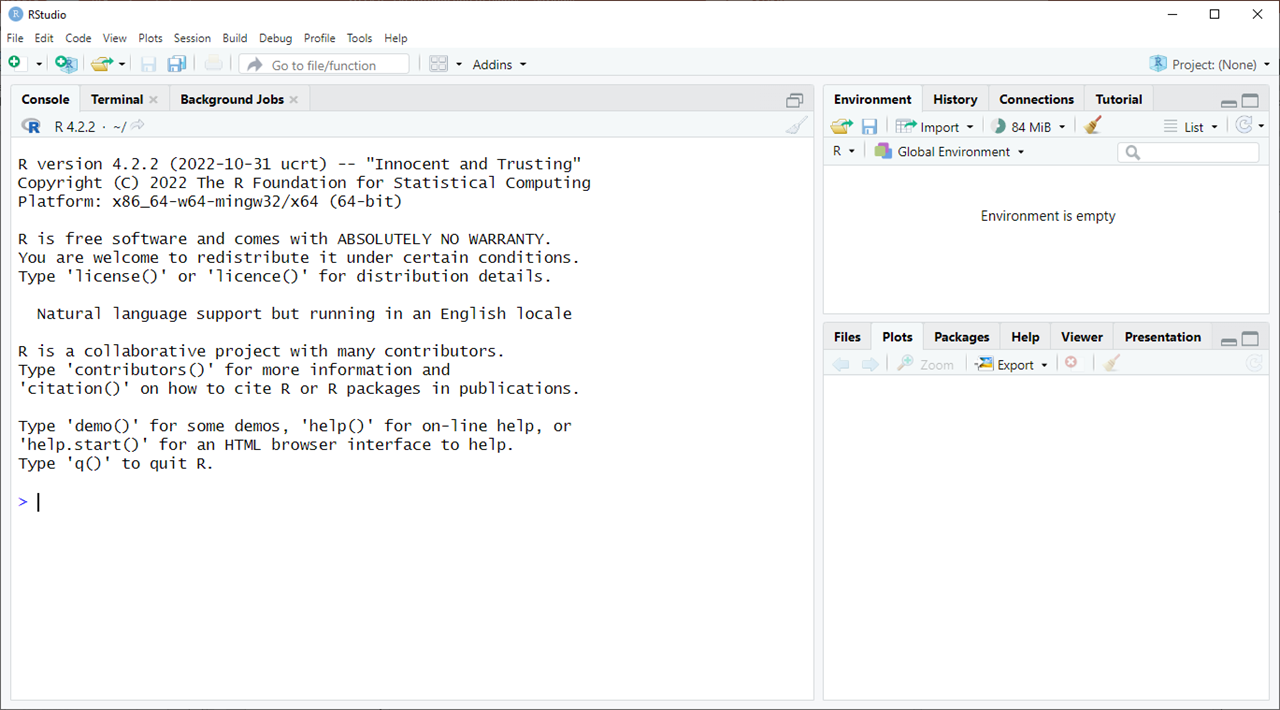
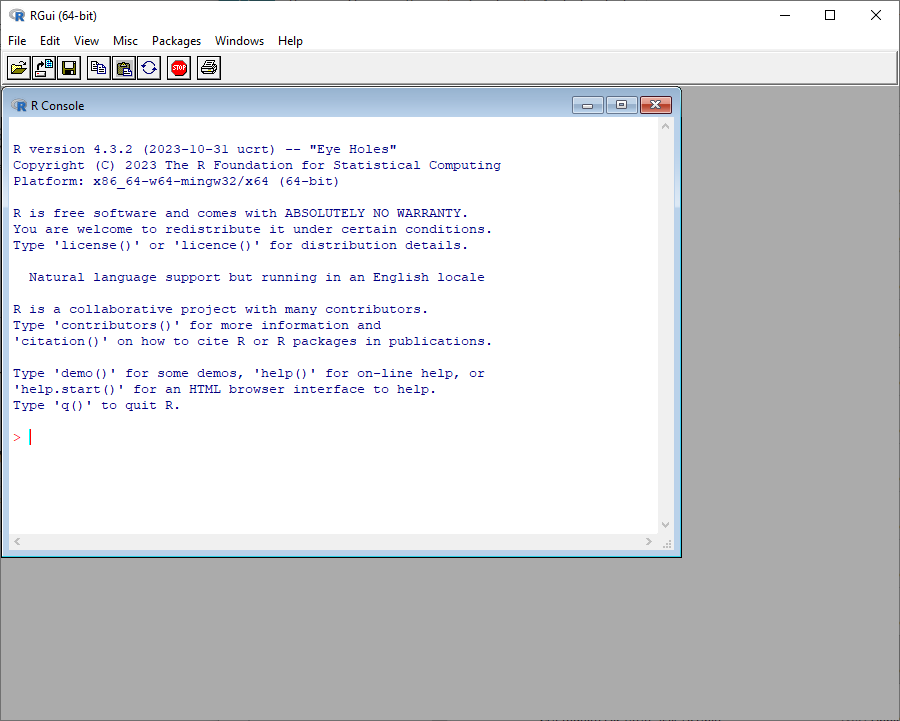
If your screen looks more like the image below, it means that you’ve accidentally opened RGui, a basic graphical user interface included with R, and not RStudio. We’re always going to be working with RStudio for this class, so close out of RGui and open RStudio instead.
Now the fun begins. The RStudio window you’ve opened consists of a few different parts. The most important of these right now is the console pane (highlighted with a black square below).
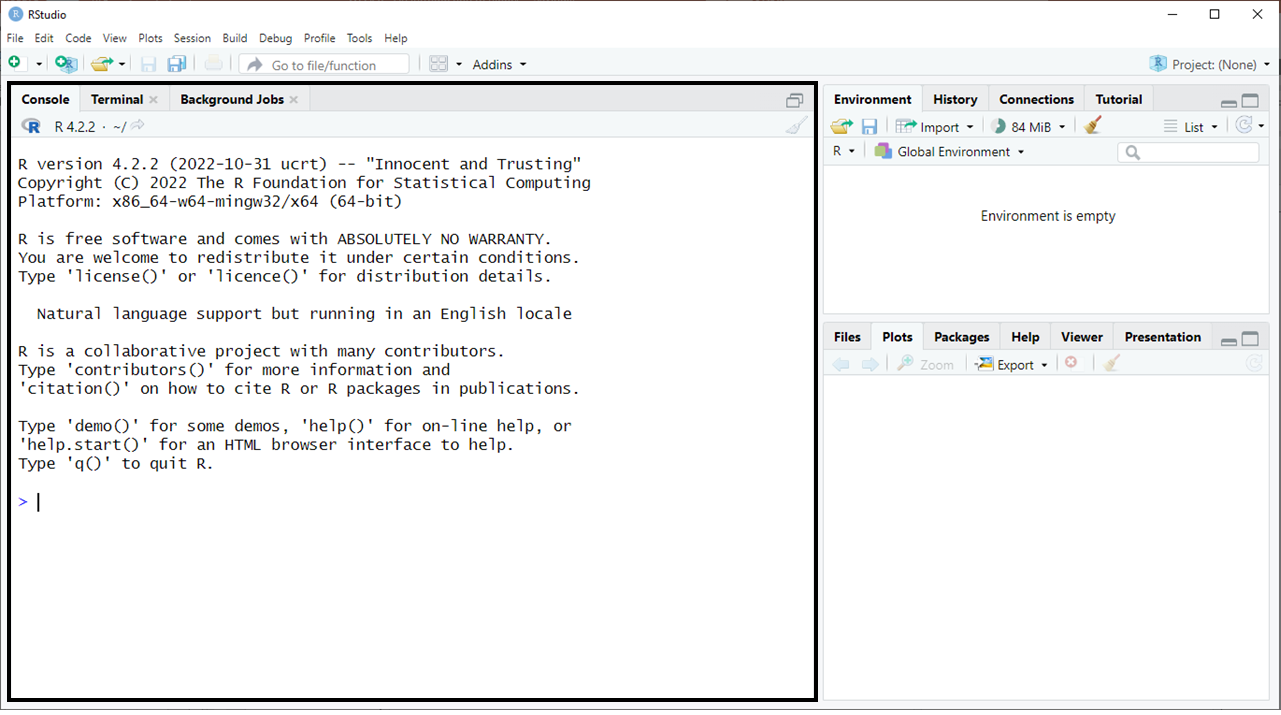
The console allows you to interact with your computer using R. So, for example, if you want to use your computer as an over-sized calculator, you can type the following R code in the console:
1 + 1What happens when you press Enter on your keyboard? You get something like this:
1 + 1[1] 2You’ve provided an input, 1+1, and received an output, 2. In other words, using the language of R, you’ve told your computer to add one plus one and your computer has correctly interpreted your command and returned (or output) an answer, two. When your computer does not know how to interpret a command, usually because you’ve made a mistake, you will receive an error message as the output instead. Identifying errors and being able to correct them is an essential skill for a programmer and one we will practice, often accidentally, throughout the course.
One more note about outputs: the first number in brackets next to your output, [1], indicates the index number of the output.1 This is especially helpful when you are running code that generates multiple outputs. See below, for example, where we input LETTERS and receive a list of letters in the English alphabet as the output (note, “T” is the 20th letter and our 20th output).
LETTERS [1] "A" "B" "C" "D" "E" "F" "G" "H" "I" "J" "K" "L" "M" "N" "O" "P" "Q" "R" "S"
[20] "T" "U" "V" "W" "X" "Y" "Z"Try entering a few more inputs in the console:
10/3
(10/3) + 1
(10/3) + 1 + (5.111)^2
As you can see, R is able to handle basic math operations with ease. What about other operations? Can you work with variables in R, for example?
Try typing this in the console:
x = 1What happens when you press Enter?
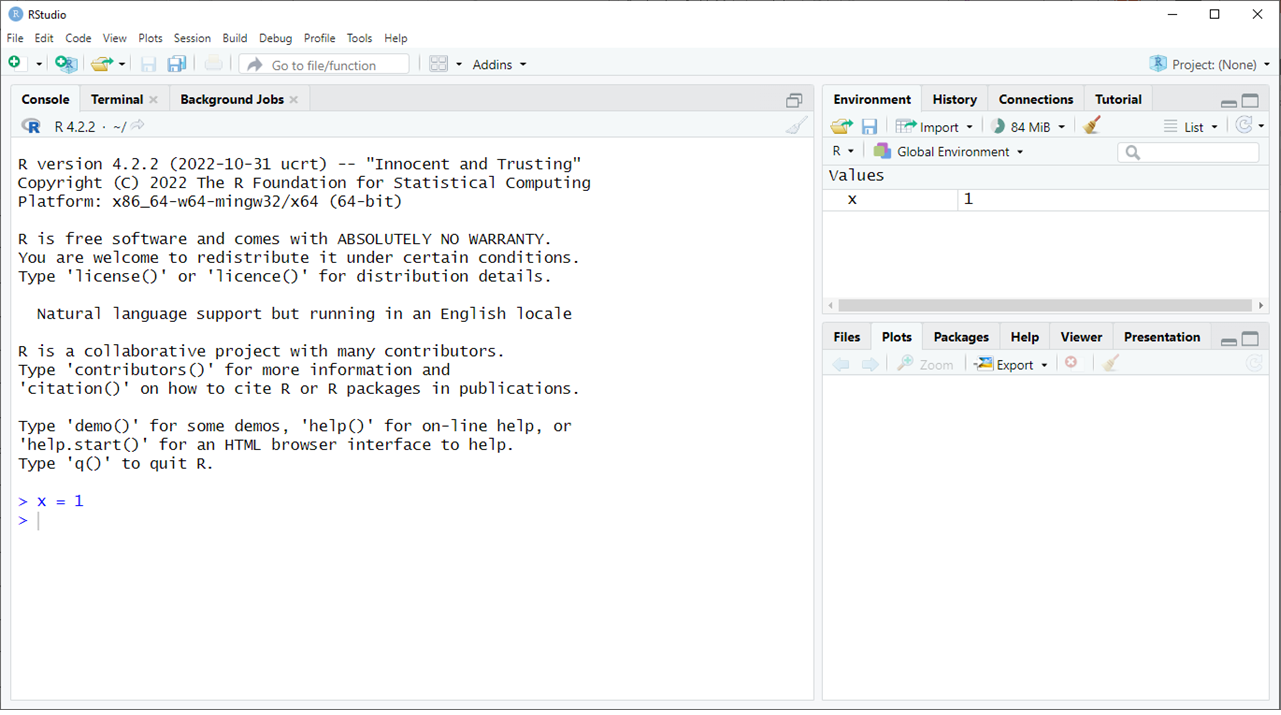
Unlike before, there is no output when you press Enter. But, that doesn’t mean nothing happened. In fact, something has happened. You’ve stored a value, 1, in a variable, x, somewhere in your computer’s memory or in what we might call the environment. You don’t receive an output, but RStudio reminds you of your new object’s existence via the environment pane in the top right.
We can recall the value we input into our variable, x, by entering the object name in the console:
x[1] 1See! Your computer remembers what you stored in the environment.
Try the following on your own in the console and then take a look at the answer:
Can you assign a new value to your variable, x?
Yes!
x = 3
x
[1] 3Can you perform math operations on a variable (e.g., x*5)?
Yes!
x * 5[1] 15Can you create a new variable, y, and use it in math operations with x (e.g., x * y)?
Yes!
y = 2
x * y
[1] 6Can you change the type of variable? What if, for example, I want x to be equal to the word "apple" instead?
Yes! For letters and words, you just have to use quotation marks:
x = "apple"
x
[1] "apple"If you’ve made it this far, well done! Here’s something else you can try. Enter the following in the console:
x <- c(1, 2, 3, 4, 5)You’ll notice that we’re using a different operator here. It’s a less than symbol, <, followed by a dash, -. This is called an assignment operator and it has the same function as the equals sign, =. You can use either, but sticking with <- when assigning values to objects will make life easier later on.
What happens when you press Enter? You have created a vector. In R, a vector is an object that holds a set of values of the same type. In this case, the vector x contains a set of numbers: \(\{1,2,3,4,5\}\). You can think of an object as a container which holds things and a “variable” as the name we use to refer to a specific object. Here, x is the variable name we’ve given to our vector of numbers, which is an object. Most things in R are objects.
We can do all sorts of things with vectors and other objects in R. We can, for example, find the sum of a vector.
sum(x)[1] 15How did we get an output of 15? We summed each of the elements of our vector x: \(1+2+3+4+5 = 15\). We can also find the mean of a vector:
mean(x)[1] 3And, we can perform other operations on vectors too. Try each of the following questions on your own in the console and then click on the answer to check your work:
Can you find the median of a vector?
You can use median() instead of mean()!
median(x)[1] 3Some functions are easy to guess, like median(), but others are false cognates just like in human languages (e.g., mode() won’t get you what you might expect in R and asking for pain in English won’t get you bread). We’ll talk more about functions and how to figure out what they do in the next chapter.
What happens when you multiply a vector by a number?
Each value in the vector is multiplied by that number!
x * 2[1] 2 4 6 8 10Can you create a new vector which consists only of letters? What about words?
Yes! Instead of using numbers, you can create a vector using letters enclosed in quotation marks.
y <- c('a', 'b', 'c')
y
[1] "a" "b" "c"The same works for words:
y <- c('cat', 'dog', 'parakeet')
y
[1] "cat" "dog" "parakeet"As you’ve started to see, working with a scripting language like R is quite different from working with software like Microsoft Excel or Google Sheets. You work interactively with data using code rather than by changing values directly in a user interface. No more clicking on cells to change values, now you change them programmatically.
One of the great advantages of interacting with data in this way, particularly for the social sciences, is that it allows us to see all of the steps you’ve taken to produce your analysis and repeat them. We don’t have to take your word for how you’ve calculated something. We can see the code and use it ourselves to produce the same thing.
This means that we leave our source data alone and write the code that produces the analysis. As with any good recipe, we want the code you write to be clear and easy to follow so that anyone can come back to it and understand what you did. We’ll say more about how to do this later on.
There are a couple of different ways to save your code:
In an R Script, a simple text file ending in a .r extension
In an R Markdown file, an interactive format that allows you to see your code and the results together in the same file
We’re going to start with an R Script file and try out R Markdown later on.
To create an R Script file in RStudio, go to File > New File > R Script.
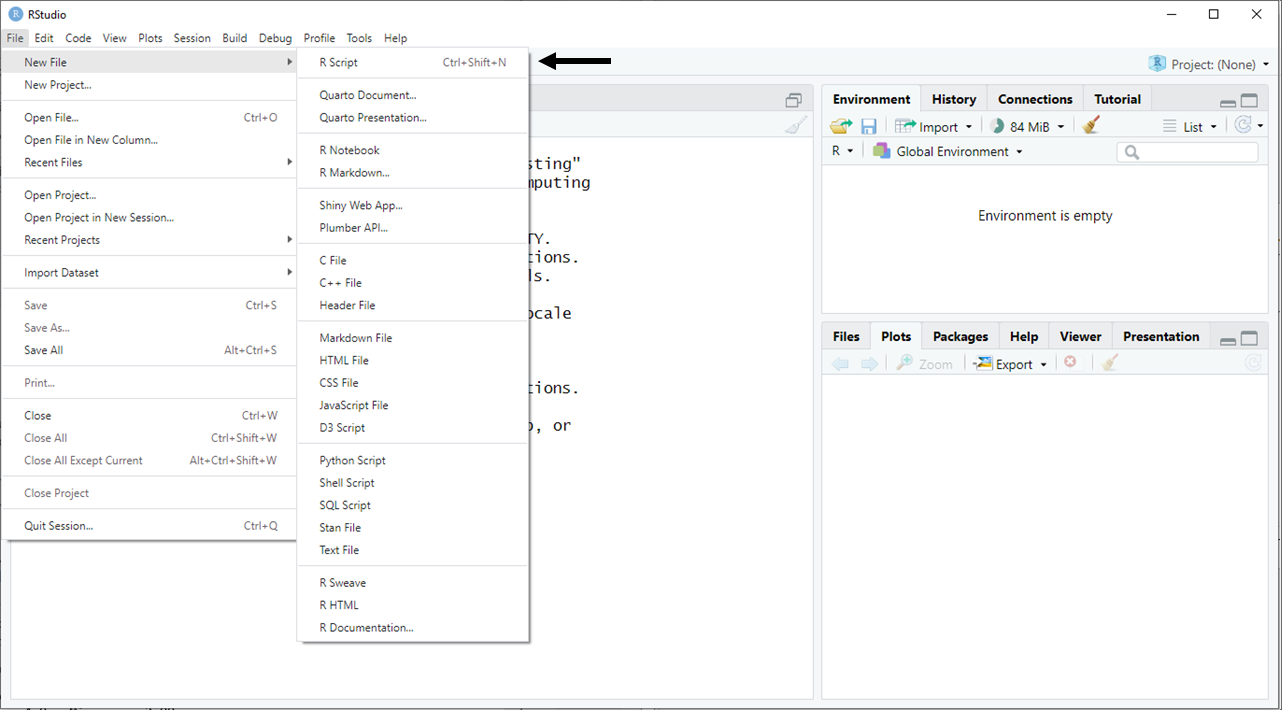
You should now have a window open in RStudio which looks like this:
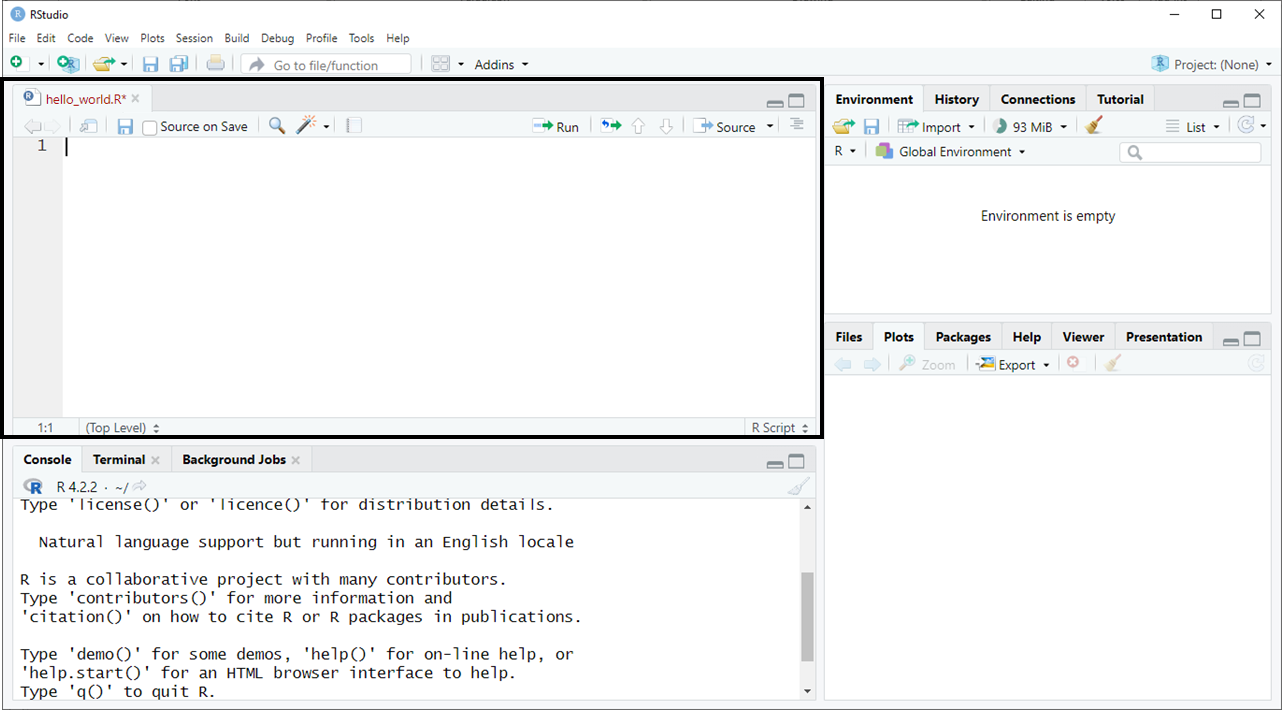
You can enter comments in your R Script file using a hash tag (#) at the beginning of each comment line. A hash tag lets R know that this line should not be run as code. Its purpose is to tell us what is happening in a particular section of the code.
I like to start by adding my name, the date, and a description to each file I use. I’ll ask that you use a header for each R file you submit for this class as well.
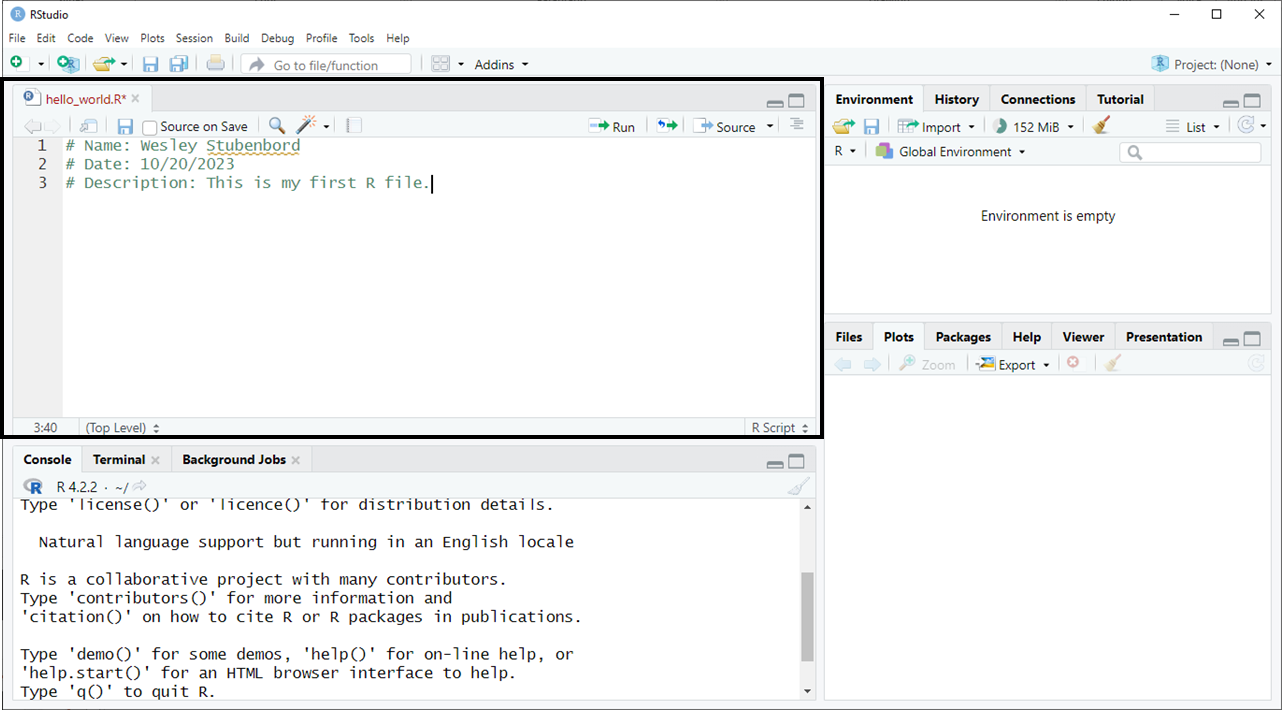
Now, save your R Script somewhere on your computer. Go to File > Save As, then choose a safe place to store it (I recommend creating a folder for this course), give your file a name, and press save. I called mine “hello_world”.
Interacting in an R Script is slightly different from interacting with the console. Now when you type in code and hit Enter, it will not execute the code, it just creates a new line in your file.
To run code in a script in RStudio, you can either:
Ctrl + EnterRun button in the upper-right of the R Script pane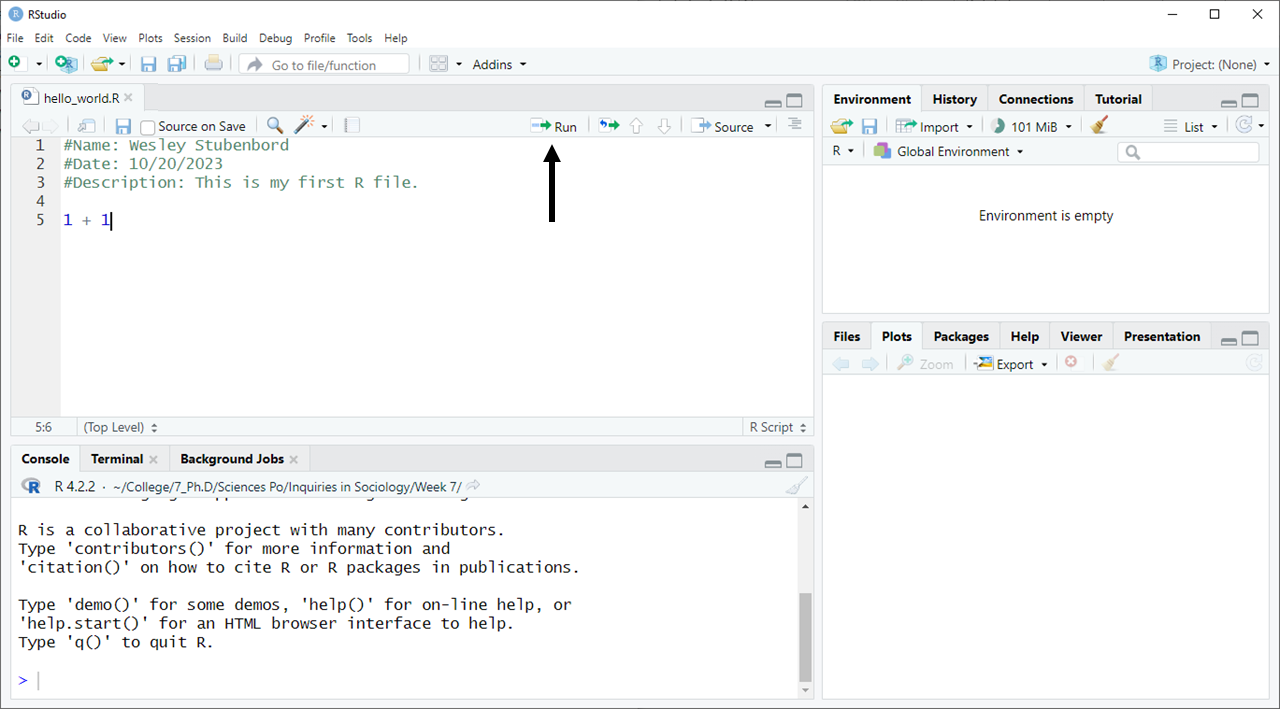
The first option allows you to run multiple lines at a time. The second runs only the line you are currently on. The results of your code will appear in the console pane below your R Script file when run successfully.
After you finish modifying your R Script file, you can save it and close out of RStudio. The next time you wish to access your saved code, you can open your R Script file and your code will be exactly as you left it.
Let’s briefly recap what you learned this lesson. So far you’ve learned:
R and RStudiosum() and mean() to perform calculations# symbolIn R, unlike in other programming languages, the first value in any data structure (e.g., a vector) has an index number of 1 rather than 0. This makes intuitive sense. If you were asked to count people in line at a boulangerie, you would call the next person waiting to place their order the first person in line, not the zeroeth. In Python, you would call them the zeroeth person and they would have an index number of 0 instead of 1. For more on where this comes from, see here.↩︎